Let’s setup your Wi-Fi extender. Follow each step, and you’ll have it connected in just a few minutes.
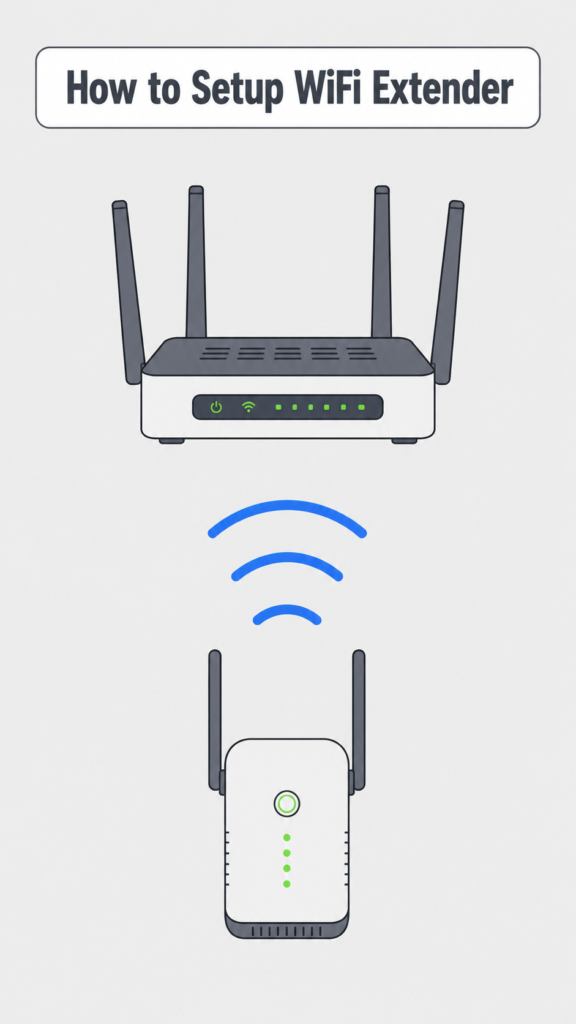
1. Plug the Wi-Fi extender into a wall outlet close to your router.
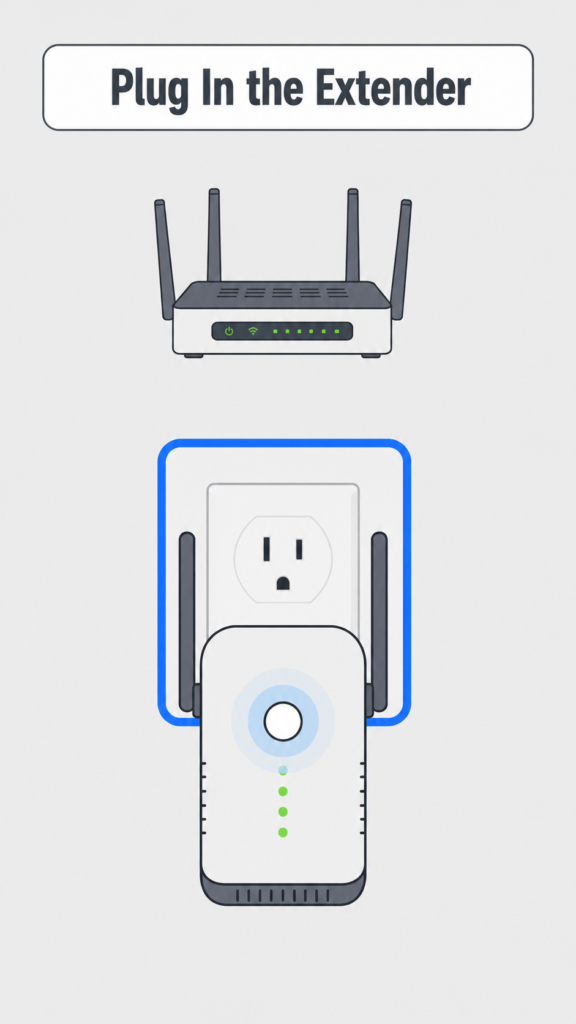
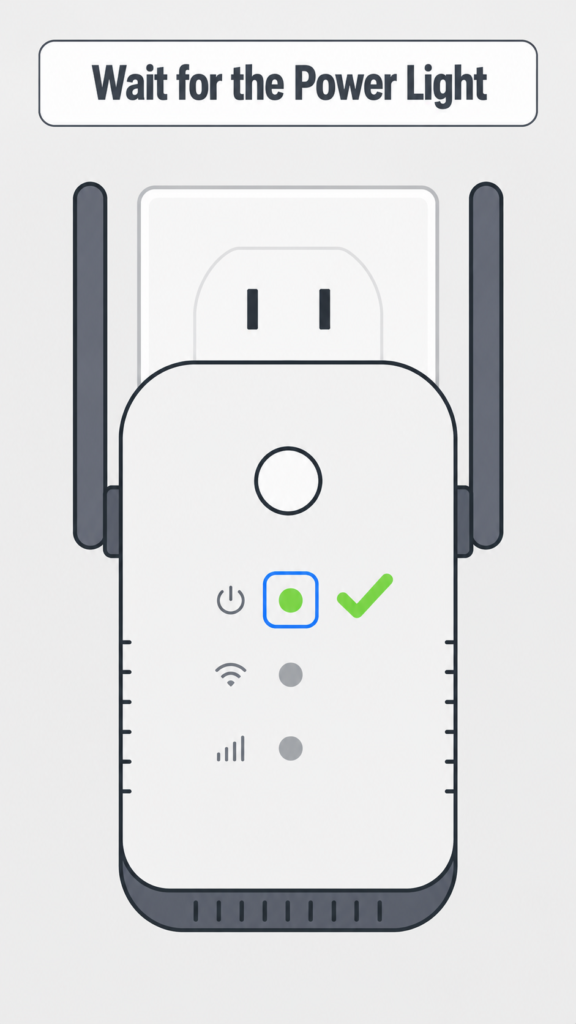
2. Wait until the Power light stops blinking and stays solid.
3. Now open Wi-Fi Settings on your phone.
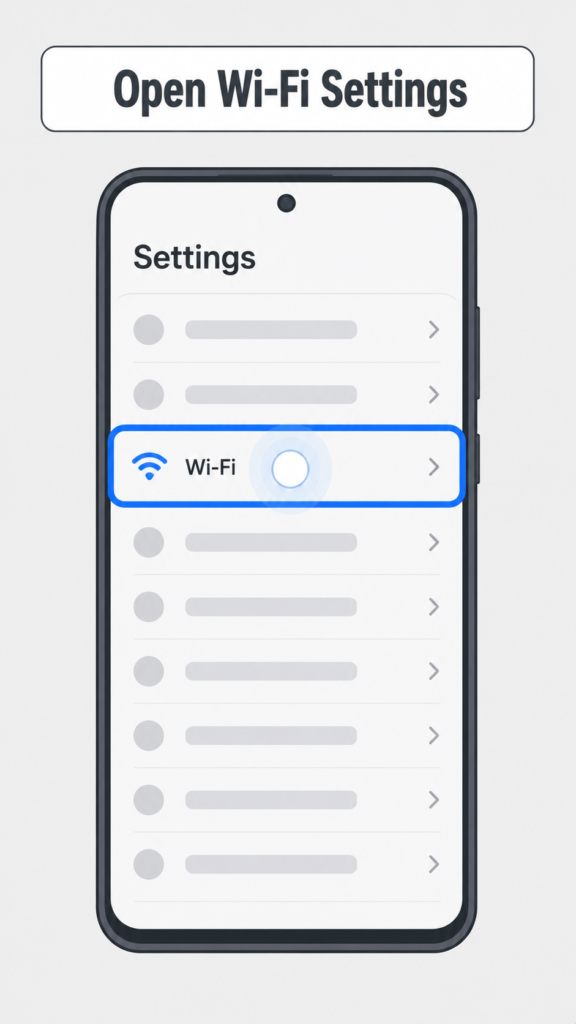
4. Tap the Wi-Fi network that belongs to your extender.
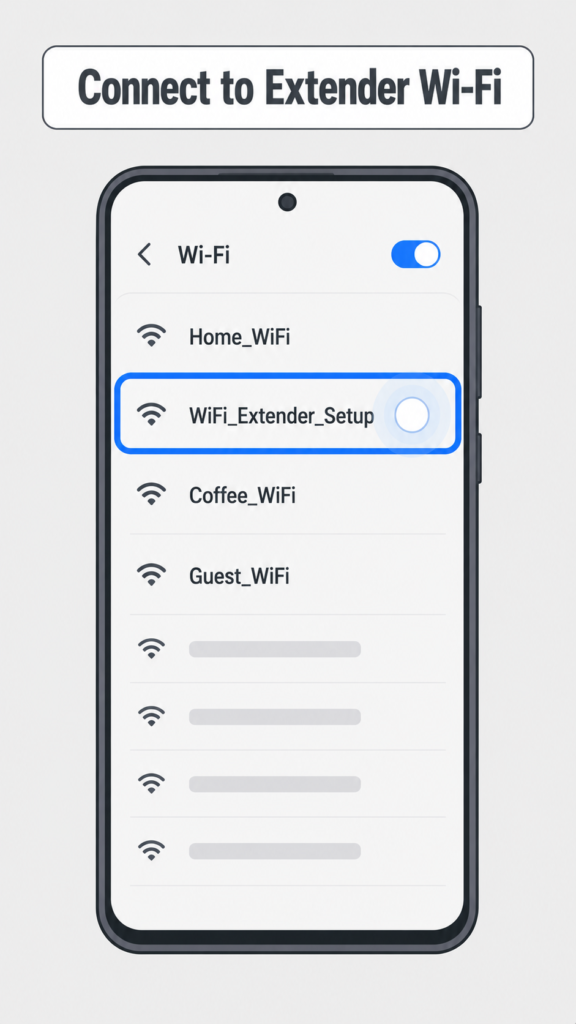
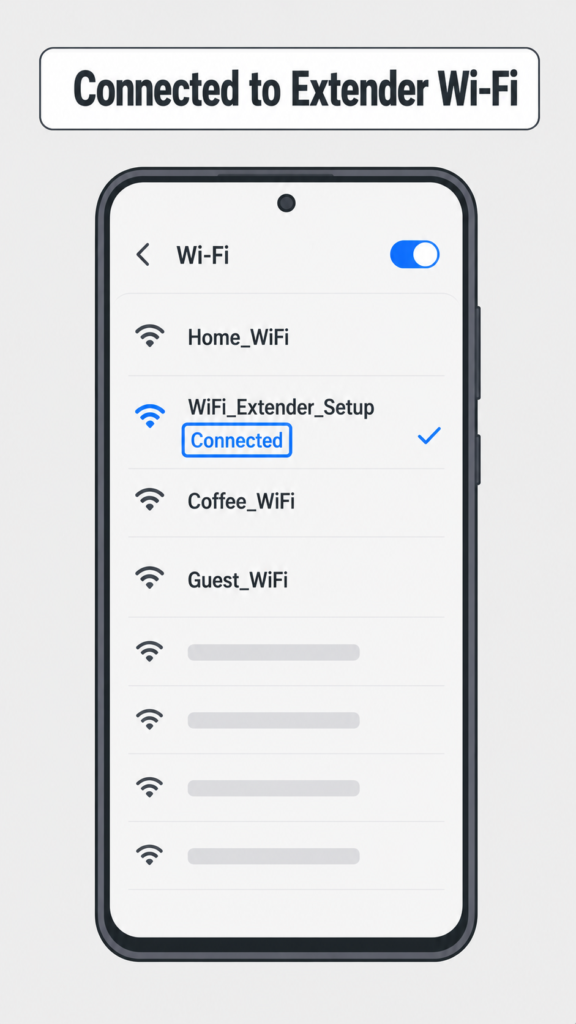
5. Wait until your phone shows it’s connected to the extender’s Wi-Fi network.
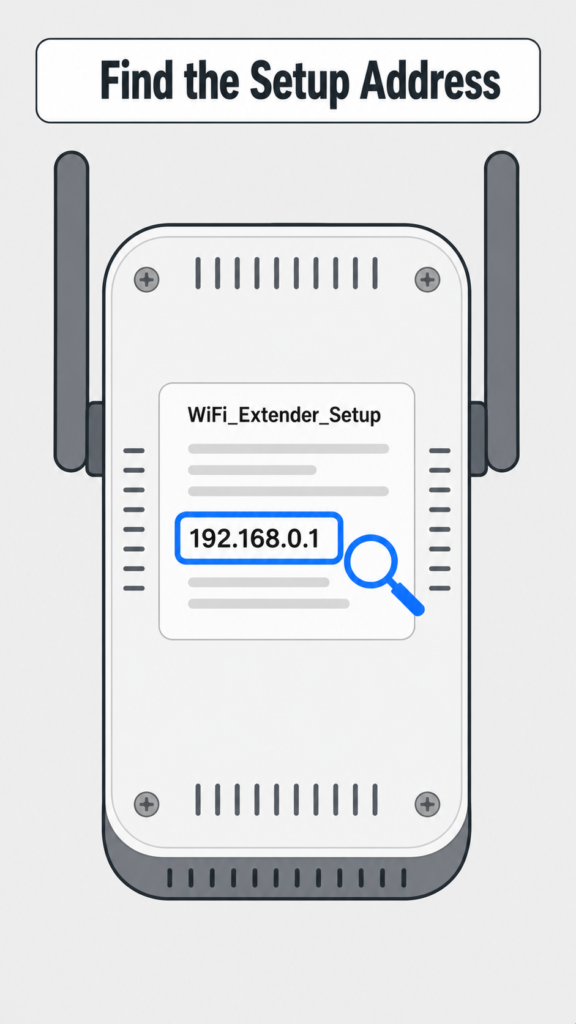
6. Turn the extender over and find the setup address printed on the label.
7. Type that address into the browser, then tap Go.
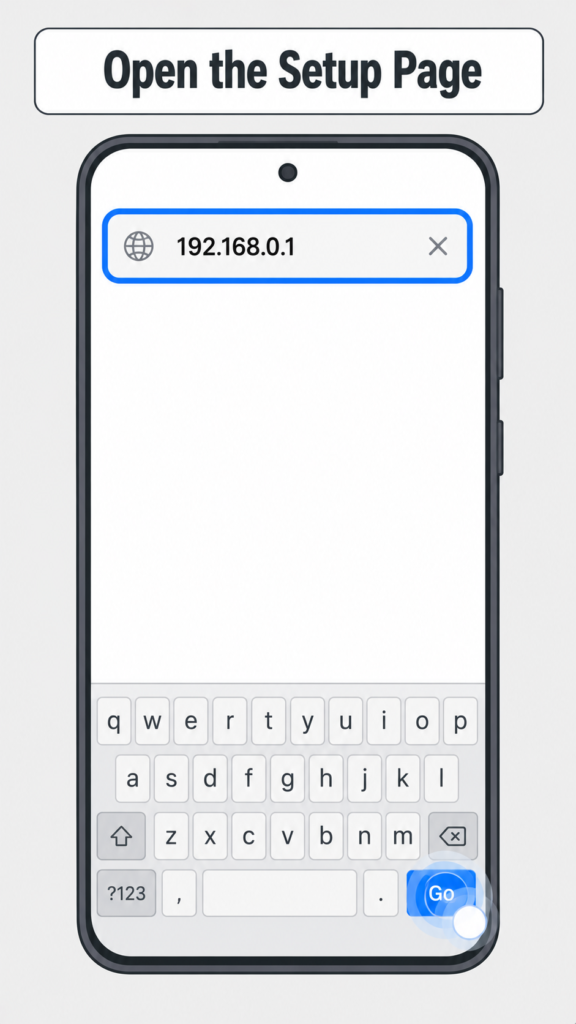
8. When the setup page opens, tap your home Wi-Fi network.
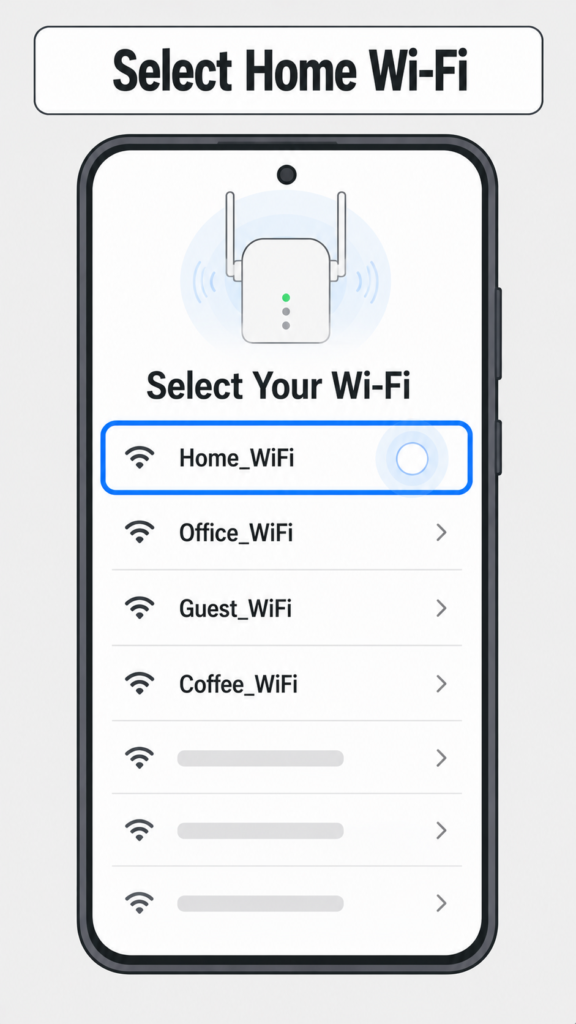
9. Enter your home Wi-Fi password exactly as you normally use it, then tap Next.
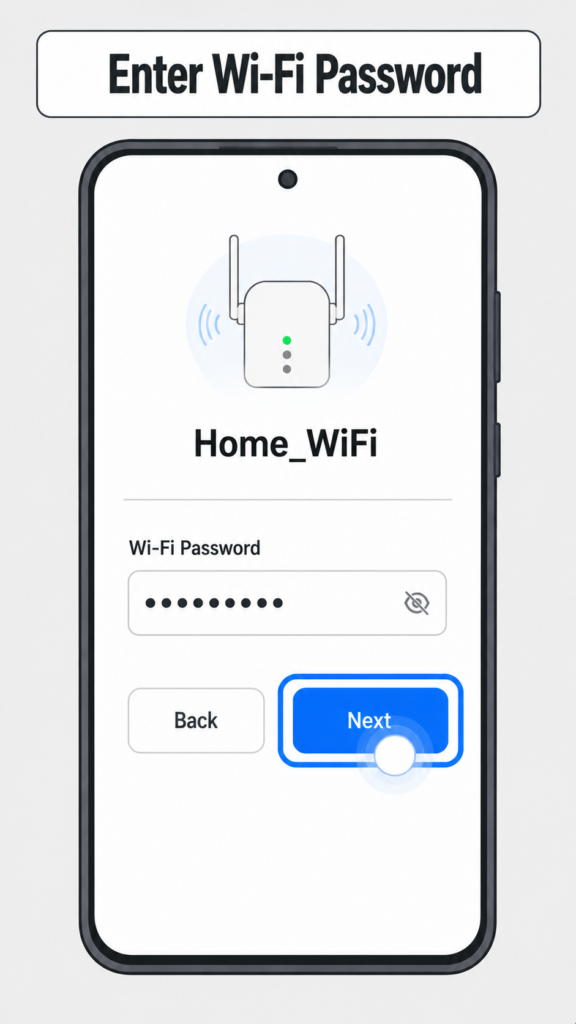
10. Now tap Connect to start connecting the extender to your router.
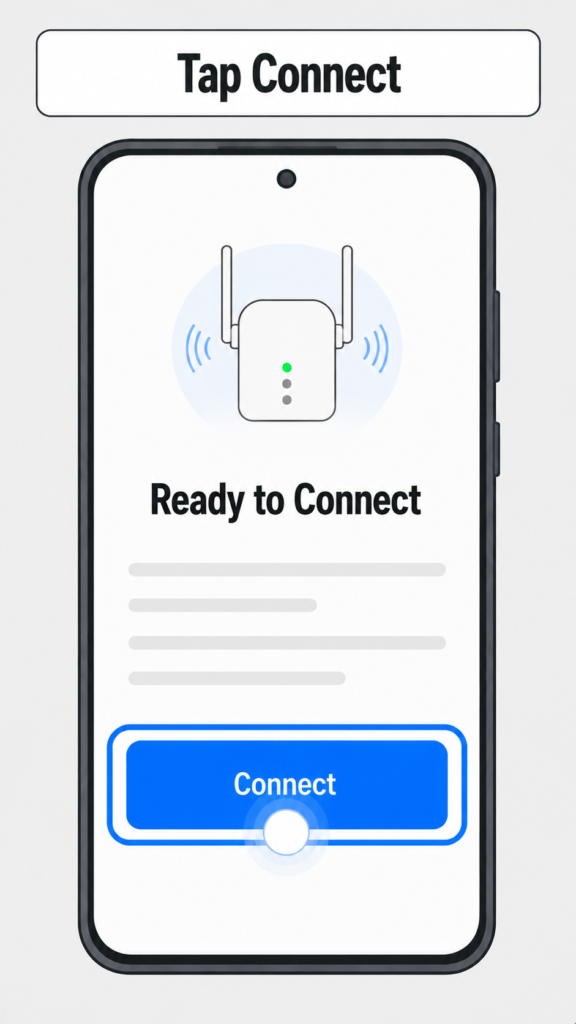
11. Wait while the extender connects to your home Wi-Fi. This usually takes about one minute.
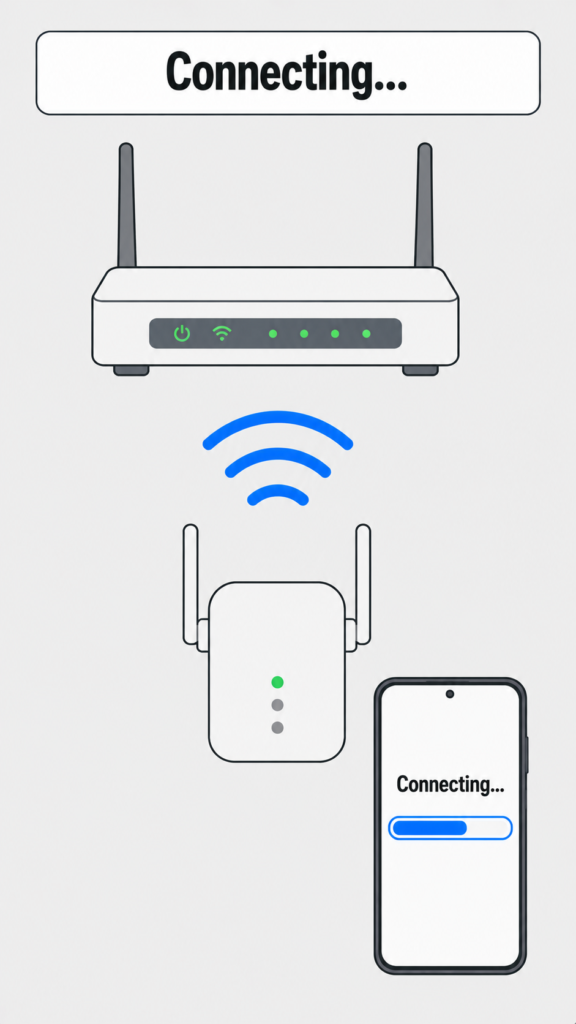
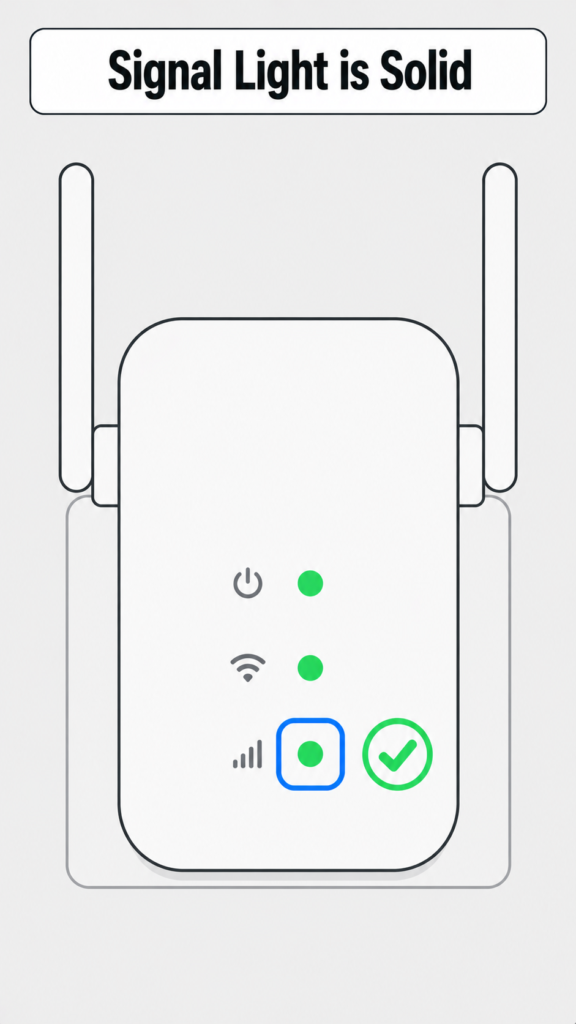
12. When the Signal light stays solid, the extender has finished connecting.
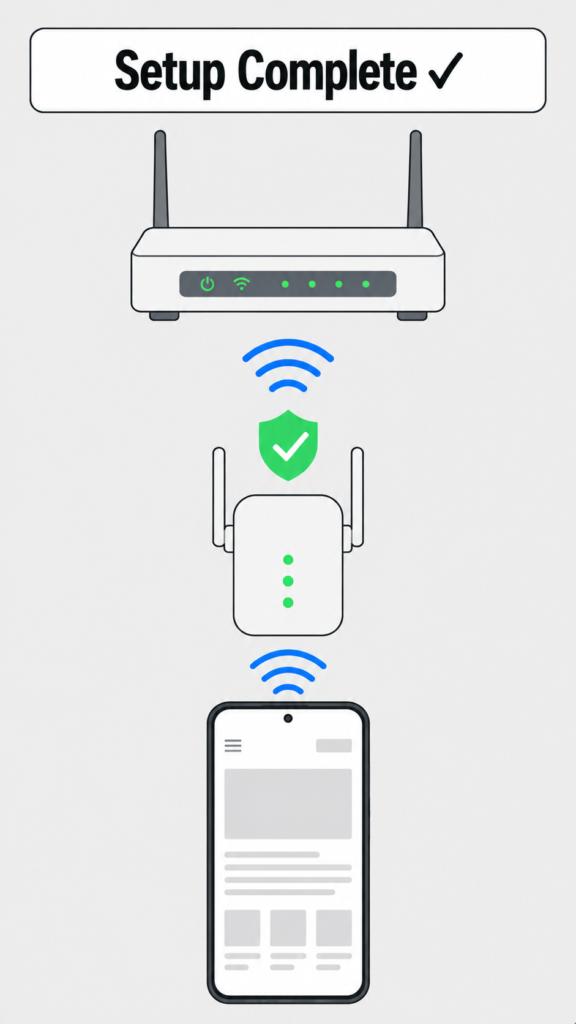
13. Open any website. If the page loads, your Wi-Fi extender is ready to use.
Frequently Asked Questions
1. How do I set up my WiFi extender for the first time?
Plug the WiFi extender into a power outlet near your router and wait until the power light becomes stable. Connect your phone or computer to the extender’s temporary WiFi network, open a web browser, enter the setup address listed on the extender’s label, and follow the on-screen instructions to connect it to your home WiFi network.
2. Where should I place my WiFi extender?
Place the extender about halfway between your router and the area with a weak WiFi signal. It should still receive a strong signal from the router while extending coverage to nearby devices.
3. How do I find my WiFi extender’s setup page?
Most WiFi extenders have a setup address printed on the device or in the user manual. Common addresses include 192.168.0.1, 192.168.1.1, or mywifiext.net, depending on the manufacturer.
4. What if the setup page won’t open?
First, make sure your device is connected to the extender’s WiFi network instead of your home network. Then verify the setup address printed on the extender. If the page still doesn’t load, restart both the extender and your device and try again.
5. Why can’t my WiFi extender find my home network?
Ensure your router is broadcasting its WiFi signal and is within range of the extender. Refresh the available network list, move the extender closer to the router, and confirm that your router’s wireless network is not hidden.
6. What password should I enter during setup?
Enter the password for your existing home WiFi network, not the password for the extender itself. This allows the extender to connect to your router and extend your wireless coverage.
7. Should my WiFi extender use the same network name as my router?
Many extenders allow you to use the same WiFi name (SSID) as your router for seamless roaming. Others create a separate network, such as HomeWiFi_EXT, allowing you to manually choose which network to join.
8. How do I know if my WiFi extender is working?
Most extenders display solid green or blue LED indicators when connected successfully. You can also verify that devices in weak-signal areas now have a stronger WiFi connection and improved internet performance.
9. Why is my WiFi extender connected but has no internet?
This usually means the extender connected to the router but the router itself has no internet access or the extender is too far away. Restart both devices, move the extender closer to the router, and reconnect it if necessary.
10. Can I set up a WiFi extender without a computer?
Yes. Most modern WiFi extenders can be configured using a smartphone or tablet through a web browser or the manufacturer’s mobile app.
11. Does a WiFi extender reduce internet speed?
Some WiFi extenders can reduce wireless speeds because they use part of the available bandwidth to relay data. Dual-band and WiFi 6 extenders generally provide better performance than older single-band models.
12. How do I reset my WiFi extender?
Locate the Reset button on the extender, press and hold it for about 10–15 seconds until the LED indicators blink, then release it. After the extender restarts, you can set it up again from scratch.
13. Can I use a WiFi extender with any router?
Yes. Most WiFi extenders are compatible with nearly all standard wireless routers, regardless of brand, as long as they support common WiFi standards.
14. How long does it take to set up a WiFi extender?
In most cases, the entire setup process takes between 5 and 10 minutes, provided you have your WiFi password and place the extender within range of your router.
15. Is a WiFi extender better than a mesh WiFi system?
A WiFi extender is a cost-effective solution for improving coverage in a small area. A mesh WiFi system is generally a better choice for larger homes because it provides seamless coverage with multiple interconnected access points.