
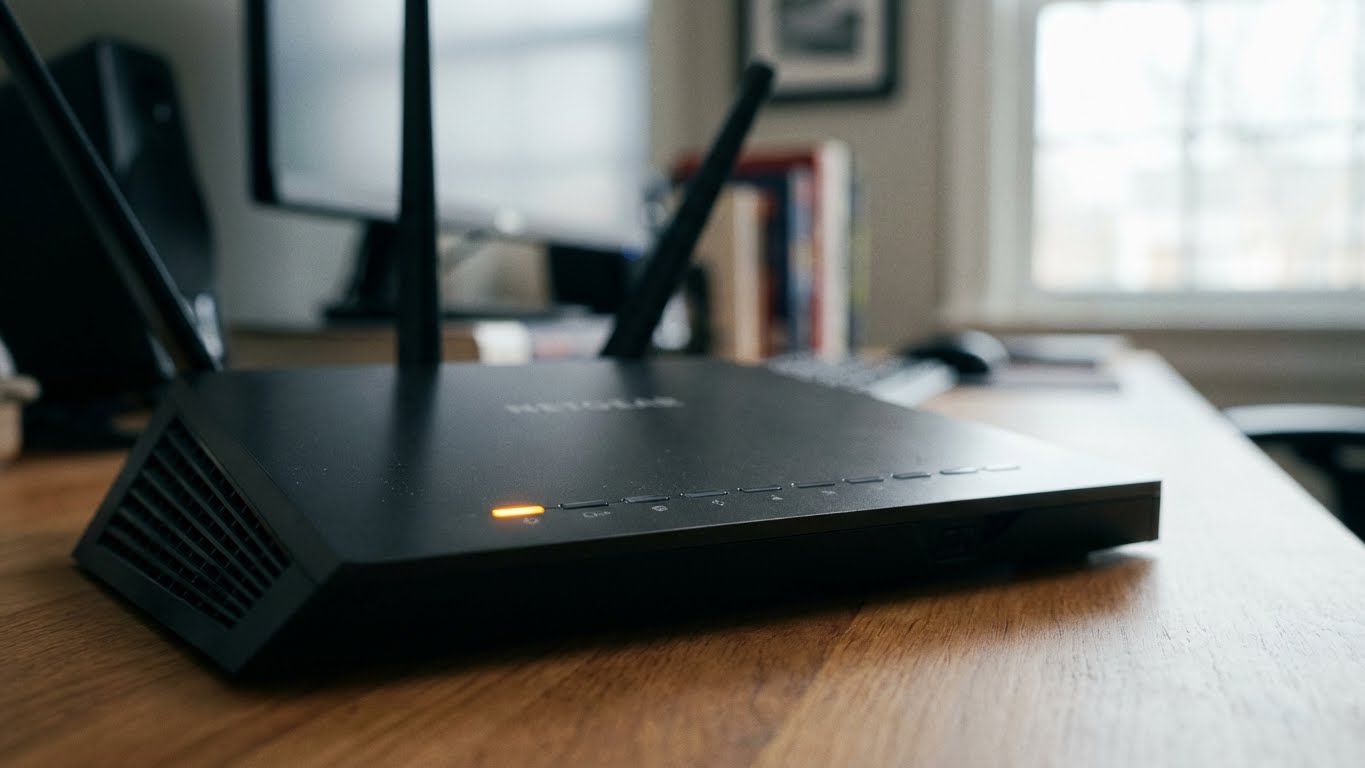
You’ve noticed a Netgear router blinking orange light, and now you’re wondering if it’s time to panic. The short answer? Probably not.
Here’s the good news: an orange light usually means your router is simply communicating a status (like a firmware update) or flagging a minor connection issue.
If the Power LED is blinking orange, the firmware is updating or corrupted. If the Internet LED is blinking orange, the router detects a cable but is not receiving internet data from the modem.
This guide will walk you through exactly how to fix the Netgear router blinking orange light issue, whether it’s the power light or the internet light.
Phase 1: Identify Which Netgear Light is Orange
Before fixing the orange light, you must identify which icon is blinking. Match your router to the cards below.
Meaning: Usually a firmware upgrade or reset is in progress (Wait 2 mins).
Warning: If blinking for 15+ mins, firmware may be corrupted.
Meaning: Physical connection exists, but no data is flowing.
Commonly an ISP outage or Modem issue.
Meaning: Connection is 10/100 Mbps (Slower) instead of Gigabit.
This is normal for older devices or Cat5 cables.
Phase 2: How to Fix Netgear Router Blinking Orange Light
Follow these steps in order to resolve the connectivity issue.
🔌 Fixing the Power LED (The “Boot” Issues)
When your Power LED is blinking orange, you are dealing with boot-related problems.
Power Cycle Everything (The 30-Second Rule)
This resolves the issue about 40% of the time. Here’s the proper sequence:
- Turn off your modem by unplugging its power cable.
- Turn off your Netgear router by unplugging its power cable.
- Wait a full 30 seconds. (This gives capacitors time to discharge).
- Plug your modem back in and wait until lights stabilize (2-3 mins).
- Plug your router back in. If the light turns white/green, you are done!
Check the Power Adapter
Using the wrong power adapter is surprisingly common. Check that you’re using the original Netgear adapter. If the voltage/amps don’t match exactly, the router can get stuck in a “boot loop” (blinking orange).
Advanced Recovery: TFTP Firmware Upload
If the Power LED has blinked for 15+ minutes, the firmware is corrupted. You can manually re-upload it using TFTP.
The Process:
- Download the correct firmware for your model from the Official Netgear Support site.
- Install a TFTP client (like Tftpd64).
- Connect PC to router via Ethernet and set static IP to
192.168.1.10. - Turn on router while holding the Reset button.
- Use TFTP client to upload firmware to
192.168.1.1.
🌐 Fixing the Internet LED (Connection Issues)
If the Internet LED is blinking orange, the router cannot reach the internet service provider (ISP).
Cable Check First
Before diving into complex settings, physically inspect your cables. Verify the cable is in the Yellow WAN/Internet port, not a LAN port.
Reboot Your Modem
Turn off your modem completely for 2 minutes. This allows your ISP to “forget” the previous connection. Then turn it back on to force a fresh handshake.
MAC Address Cloning
Some ISPs lock connection to your old device. Trick them by cloning the MAC address:
- Log into
192.168.1.1. - Navigate to Advanced > Setup > Internet Setup.
- Find “MAC Address Clone”.
- Select “Use Computer MAC Address” and Save.
💻 Fixing Ethernet Port Lights (Speed Issues)
An orange light on numbered ports usually just indicates a 100Mbps connection speed.
| Cable/Device | Speed Support | Light Color |
|---|---|---|
| Cat 5 Cable | 100 Mbps (Slow) | 🟠 Orange |
| Cat 5e / Cat 6 | 1000 Mbps (Gigabit) | 🟢 Green/White |
Advanced Troubleshooting (Factory Reset)
If the Netgear router blinking orange light persists, a factory reset returns your router to its original state.
Method 1: Reset Button
- Locate the small Reset hole on the back.
- With router ON, use a paperclip to hold the button for 7-10 seconds.
- Release when the Power LED blinks amber. Wait for reboot.
When to Contact Support
If you’ve tried everything (including the Reset and TFTP) and the blinking orange light persists, you likely have hardware failure.
1-888-638-4327
0808 168 1388
You’ve Got This
An orange light on your Netgear router might seem alarming, but it’s usually fixable. Remember: Power Cycle first, check cables second, and only reset if necessary. Good luck!