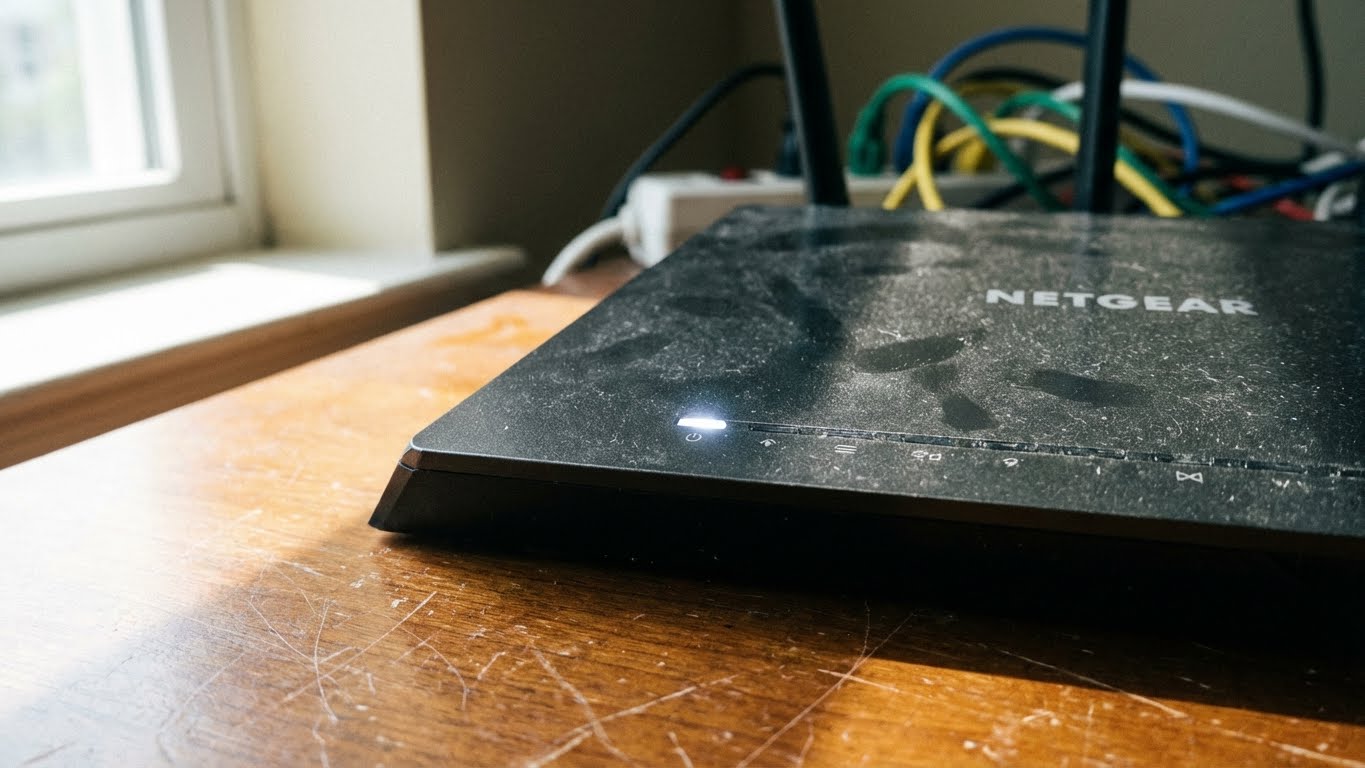
A blinking white power light indicates corrupted firmware. This usually happens if a firmware update was interrupted or due to a power surge. The router is stuck in a “boot loop” and needs a reset or TFTP recovery to fix.
If your Netgear router’s power light is blinking white, you’re likely dealing with corrupted firmware. This typically happens when a firmware update gets interrupted—whether by a power outage, unstable internet connection, or simply unplugging the router mid-update. Power surges can also damage the firmware stored in your router’s memory.
Here’s the good news: A blinking white power light doesn’t mean your router is dead. In most cases, you can recover it using the methods outlined in this guide.
Think of your router’s firmware like the instructions for a furniture kit. If the instructions get torn (corrupted firmware), the router doesn’t know how to put itself together to work. Using the recovery methods below is like downloading a fresh, dry copy of those instructions so your router can finally finish building its connection.
The Easy Fixes (Try These First)
Before diving into technical recovery methods, try these quick fixes that resolve the issue about 30% of the time.
Power Cycle Your Network
A proper power cycle can sometimes clear temporary glitches:
- Unplug your Netgear router from the power outlet.
- Unplug your modem as well.
- Wait a full 10 minutes (this allows capacitors to fully discharge).
- Plug in your modem first and wait 2 minutes for it to fully boot.
- Plug in your router and observe the power light for 3-5 minutes.
If the white light stops blinking and turns solid, you’re back in business.
Hardware Check
Faulty hardware can mimic firmware issues:
- Verify the power adapter: Make sure you’re using the original Netgear power adapter that came with your router. Third-party adapters might not provide the correct voltage, preventing proper boot-up.
- Try a different outlet: Plug your router directly into a wall outlet (not a power strip) to rule out power delivery issues.
Advanced Reset Techniques
If the easy fixes didn’t work, it’s time to try reset methods that wipe the router’s configuration.
The Standard Factory Reset
This method works when the router’s firmware is intact but misconfigured:
- Locate the reset button (usually a small pinhole on the back of the router).
- Use a paperclip or pin to press and hold the reset button for 10 seconds.
- Release the button and wait 2-3 minutes for the router to reboot.
The 30-30-30 Reset (Deep Reset Method)
This aggressive reset technique can sometimes force the router to reinitialize its firmware:
- First 30 seconds: With the router powered on, press and hold the reset button for 30 seconds.
- Second 30 seconds: While still holding the reset button, unplug the power adapter and continue holding for another 30 seconds.
- Third 30 seconds: Still holding the reset button, plug the power adapter back in and hold for a final 30 seconds.
Release the button and wait 3-5 minutes. This method forces the router to clear all NVRAM (non-volatile memory).
The Ultimate Fix: TFTP Firmware Recovery
TFTP (Trivial File Transfer Protocol) recovery is the most reliable way to restore corrupted firmware. This method manually uploads fresh firmware to your router.
C:\netgear\.
Step 1: Enable TFTP Client in Windows
- Click the Start button and type “Turn Windows features on or off”.
- Click on the result to open the Windows Features dialog.
- Scroll down and check the box next to “TFTP Client”.
- Click OK and wait for Windows to apply the changes.
Step 2: Windows Recovery Process
Connect your computer directly to the router via Ethernet and set a Static IP (192.168.1.2). Then open Command Prompt as Administrator and run these commands:
C:\netgear> tftp -i 192.168.1.1 PUT firmware-filename.chk
Transfer successful: 3500000 bytes in 10 seconds.
(Replace “firmware-filename.chk” with your actual file name).
Wait patiently. The upload takes 1-3 minutes. After the transfer completes, the router will automatically reboot. The power light should eventually turn solid white.
Step 3: Mac Recovery Process
If you are on a Mac, use the Terminal app. Connect via Ethernet, set your Static IP, navigate to your downloads folder, and run:
tftp> binary
tftp> put firmware-filename.chk
Sent 3500000 bytes in 5.0 seconds
tftp> quit
Model-Specific Exceptions
Some Netgear models have unique behaviors that can be confused with firmware corruption.
Nighthawk R8000
On the R8000, a blinking white light transitioning to amber can indicate the router is in Access Point (AP) mode rather than router mode. Log into 192.168.1.1 and check Advanced > Advanced Setup > Router/AP Mode.
Mesh Systems (Orbi MS60/MR60)
Mesh systems can show blinking white lights due to IP conflicts or satellite communication issues:
- IP conflict: If your modem is also using 192.168.1.1, change the Orbi’s IP range via the web interface.
- Satellite sync issues: Press the sync button on the router, then press the sync button on the satellite within 2 minutes.
Prevention (How to Avoid Bricking Again)
Once you’ve recovered your router, follow these practices to prevent future firmware corruption.
- Avoid App Updates: Always use a hardwired Ethernet connection and the web interface (192.168.1.1) to update firmware. Wi-Fi updates are unstable.
- Use Surge Protection: Connect your router to a surge protector rated for at least 2,000 joules, or a UPS battery backup.
- Don’t Interrupt: Never unplug or power off the router during a firmware update, even if it seems stuck. Most updates take 5-10 minutes.
People Also Ask (FAQs)
Why is my Netgear router power light blinking white?
Will a factory reset fix the blinking white light?
What is the 30-30-30 reset rule?
Still Stuck? Contact Support
If you’ve tried all methods (especially TFTP) and the light persists, you may have hardware failure.
1-888-638-4327
0808-169-3370